Accounts
The Accounts section displays a list of your imported accounts in the current network. Saving accounts simplifies interaction with forms: added accounts automatically become available for selection in the corresponding dropdown menus, which significantly saves your time. You can also view the detailed state of an account, its balance, keys, and other information by selecting it in the list.
Account list
The main page of the section displays a list of all your imported accounts.
To add a new one, click the Import button.
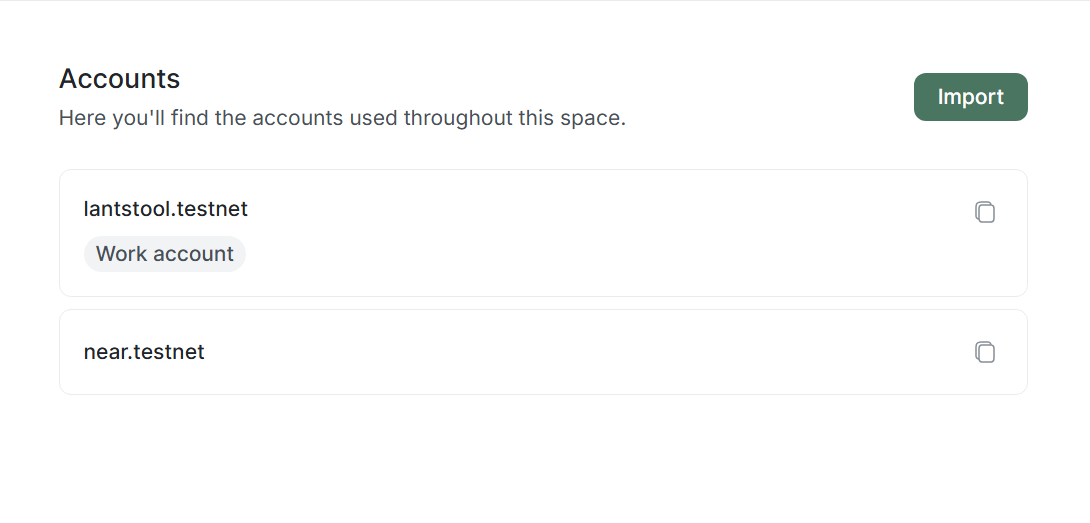
Account import
In the import modal window, you need to specify:
- Account ID: A unique account name in the network (e.g.,
alice.testnet). - Note (Optional): A note for a short description of the account (e.g.,
Work account).
You can add an account:
- If the account exists: Lantstool will pull its balance, list of keys, and other data.
- If the account is not on the blockchain: You will see the message
This account is not yet on-chain. This is convenient if you have deleted an account from the blockchain or plan to create it later.
Account information
By selecting an account from the list, you are taken to the account information page. At the top, your Account Id, import time, and Copy and Delete buttons are displayed (deletes the account only from your Network, not from the blockchain). Below are the sections: Details and Associated Keys.
Details section
Actual account data is displayed here.
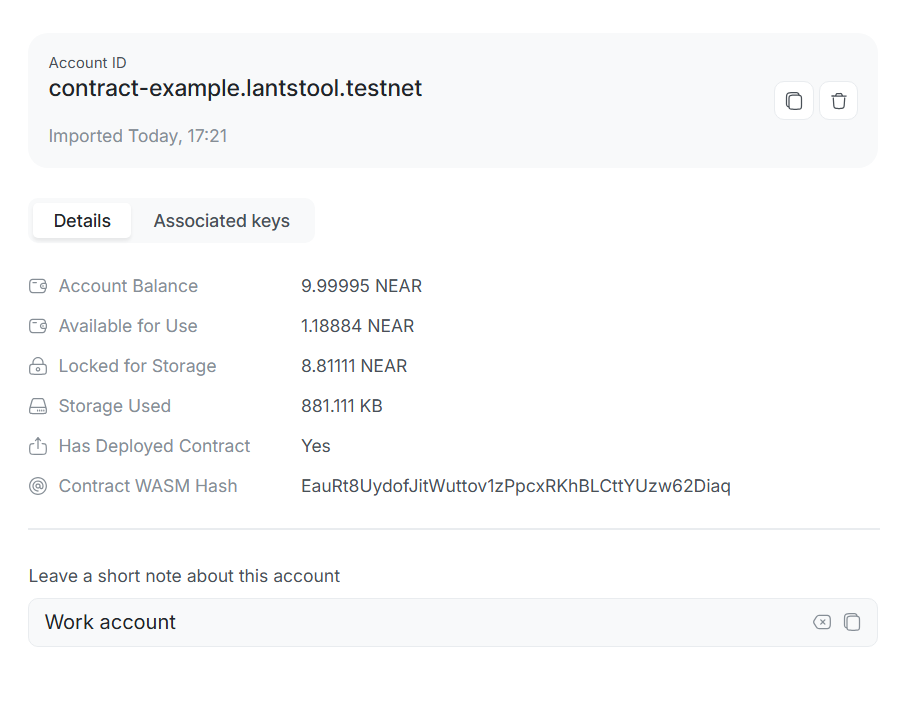
- Account Balance: The total balance of the account.
- Available for Use: The number of tokens available for transfers and gas payments.
- Locked for Storage: The number of tokens locked by the blockchain to pay for data storage.
- Storage Used: The amount of memory in kilobytes occupied by the account in the blockchain.
- Has Deployed Contract: Indicates the presence of a contract in your account
Yes/No. - Contract WASM Hash: The WASM hash of the contract if it has been deployed.
At the bottom, you can add or change your note about this account.
Associated keys section
This tab displays a full list of public keys belonging to this account. Lantstool automatically checks this list against your local storage to display those imported in the app.
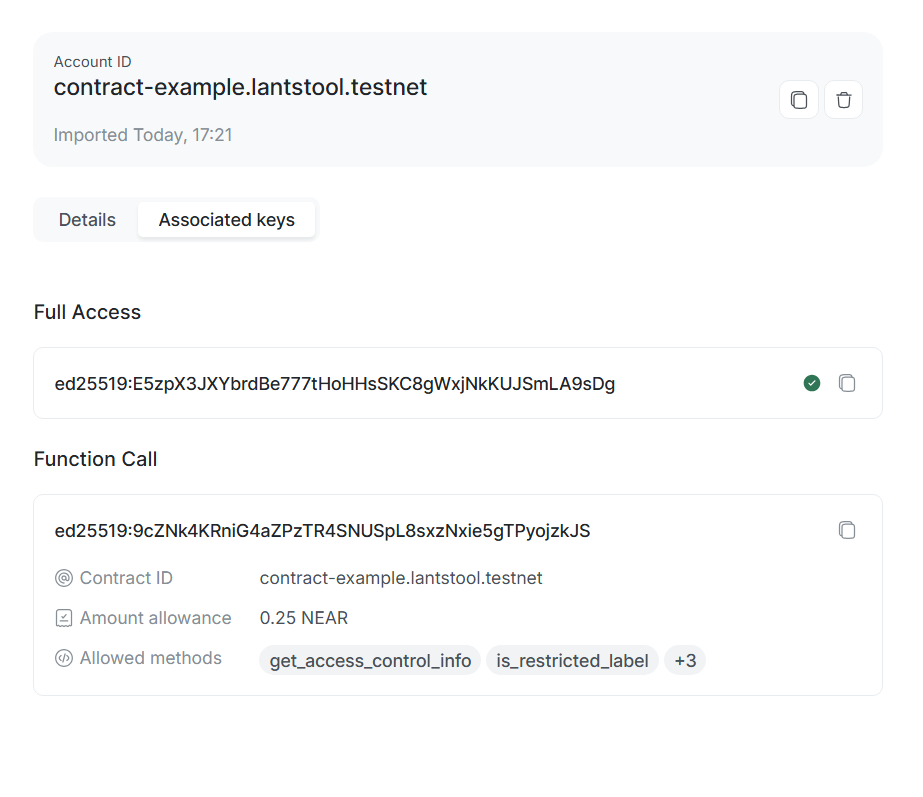
Key types
The list is divided into two types of access:
-
Full Access Keys: Keys that have full access and allow signing any transactions, including transferring funds, deploying contracts, and deleting the account.
-
Function Call Keys: Keys that only have the right to call certain smart contract methods with limited gas consumption. They display the following data:
- Contract ID: The contract account that this key is allowed to interact with.
- Amount allowance: The limit of funds in NEAR that this key can spend on transaction fees (Gas).
- Allowed methods: A list of allowed methods (
All methodsor a list of specific methods).
Key status
Lantstool automatically compares keys from the blockchain with your local storage Keys:
-
Imported ✅ (Green checkmark): The private key is found in your Keys storage. This means you can sign transactions with it. You can quickly jump to the key by clicking on it.
-
Not imported (No mark): The key exists on the blockchain but is missing from Keys. You will not be able to use the key to sign transactions until you import it.
➡️ What’s next?
- Networks: Learn how to set up a custom network.
- Transactions: Creating complex transactions with multiple actions.
- Calls: How to send RPC calls.
- Keys: Detailed information about secure key storage.