Settings
Settings section — center for managing all local data of Lantstool application. Here you can create backups of your working environment or perform full settings reset.
Backup
Regularly creating backups — best way to protect your data, as Lantstool stores all information locally in your browser.
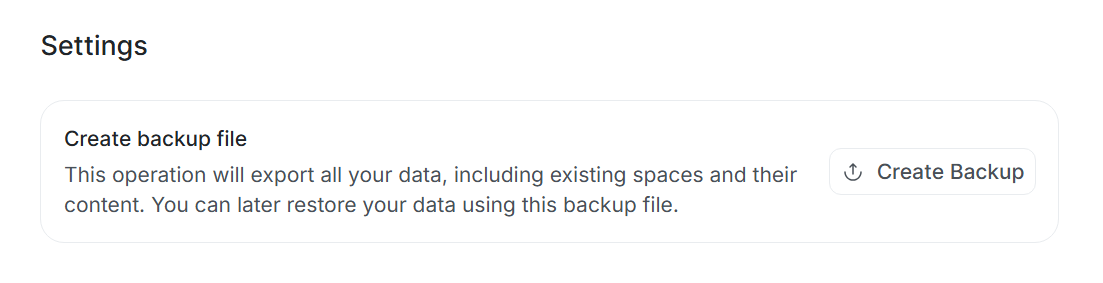
Create backup
Click Create Backup button to export all local data saved in application. System will generate archive file in .zip format containing all your spaces, networks, keys, transactions, and calls.
Restore backup
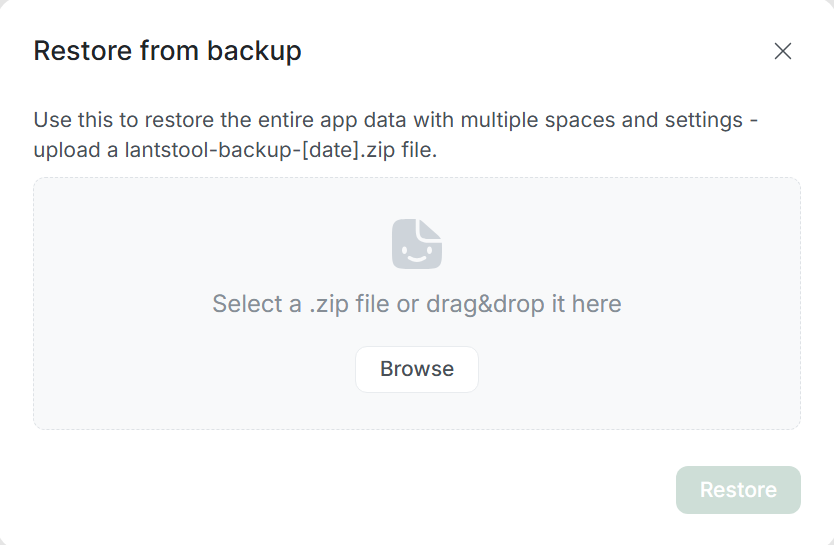
To restore data, use Restore Backup function on Get started welcome screen. After selecting corresponding file, Lantstool will automatically restore all your spaces, networks, keys, and other data, allowing to continue work immediately.
Danger Zone
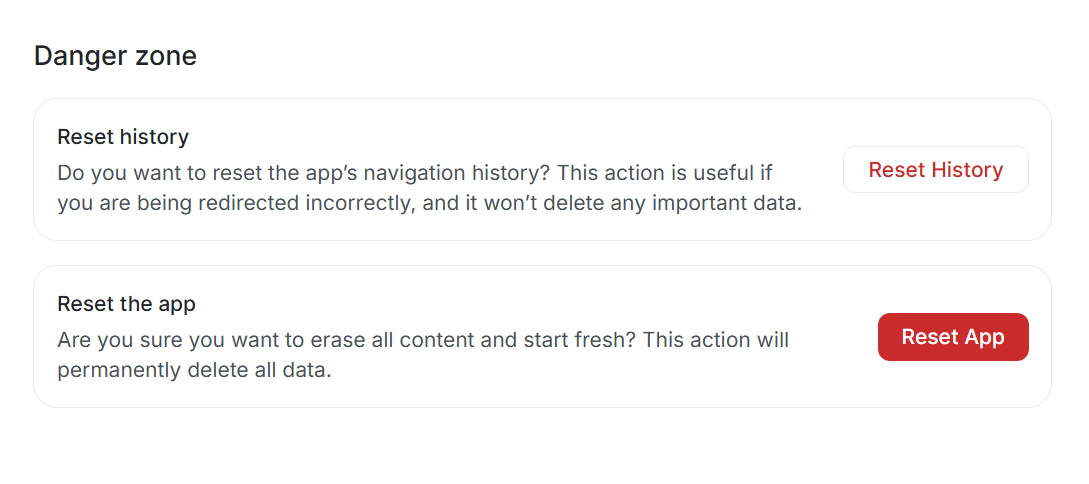
This section contains functions for clearing Lantstool data and your navigation history.
Reset History
This function clears navigation history within application without deleting your working data (keys, transactions, etc.). Lantstool uses automatic navigation system to optimize transitions in application. If navigation issues occur and application redirects you to incorrect page, Reset History will fix it.
Reset App
This function completely clears Lantstool local database in your browser. Use it if you wish to start from “clean slate” or remove your sensitive information from current device.
This action is irreversible!
Deletion will lead to complete loss of all configured spaces, networks, added keys, accounts, and created transactions and calls. Application will be returned to first-launch state (Get Started page).
Before confirmation, we recommend creating backup to be able to restore data in future.