Spaces
Space — isolated workspace created for organizing separate projects. Each space acts as independent container with own network settings. All data (keys, accounts, transactions, etc.) are stored isolated within specific network. This allows clear separation of workflows (testing in testnet, implementation of ready solutions in mainnet) within one project, excluding risk of mixing data or settings.
Isolation and multi-project support
Lantstool allows creating unlimited number of spaces, providing maximum order and control over your data.
- 🔒 Isolation: Saved keys, imported accounts, and transaction and call templates used in one space are invisible and inaccessible in another.
- 💼 Multi-project support: Ideal for developers working on several NEAR projects simultaneously. Create separate spaces for each project.
Space creation and management
Navigation
Click on current space name in top left corner. Following actions are available in menu:
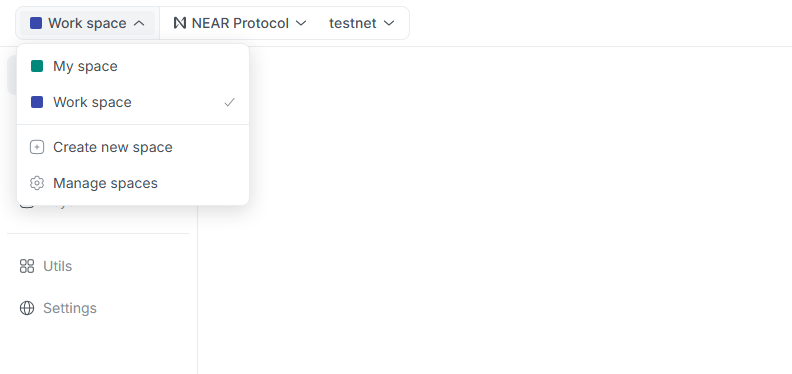
- Space list: Quick navigation between all spaces.
- Create new space: Transition to page for creating new space.
- Manage spaces: Transition to page for managing all your spaces.
New space creation
To create new space, use Create new space button in menu or Create space button on page for managing all spaces.
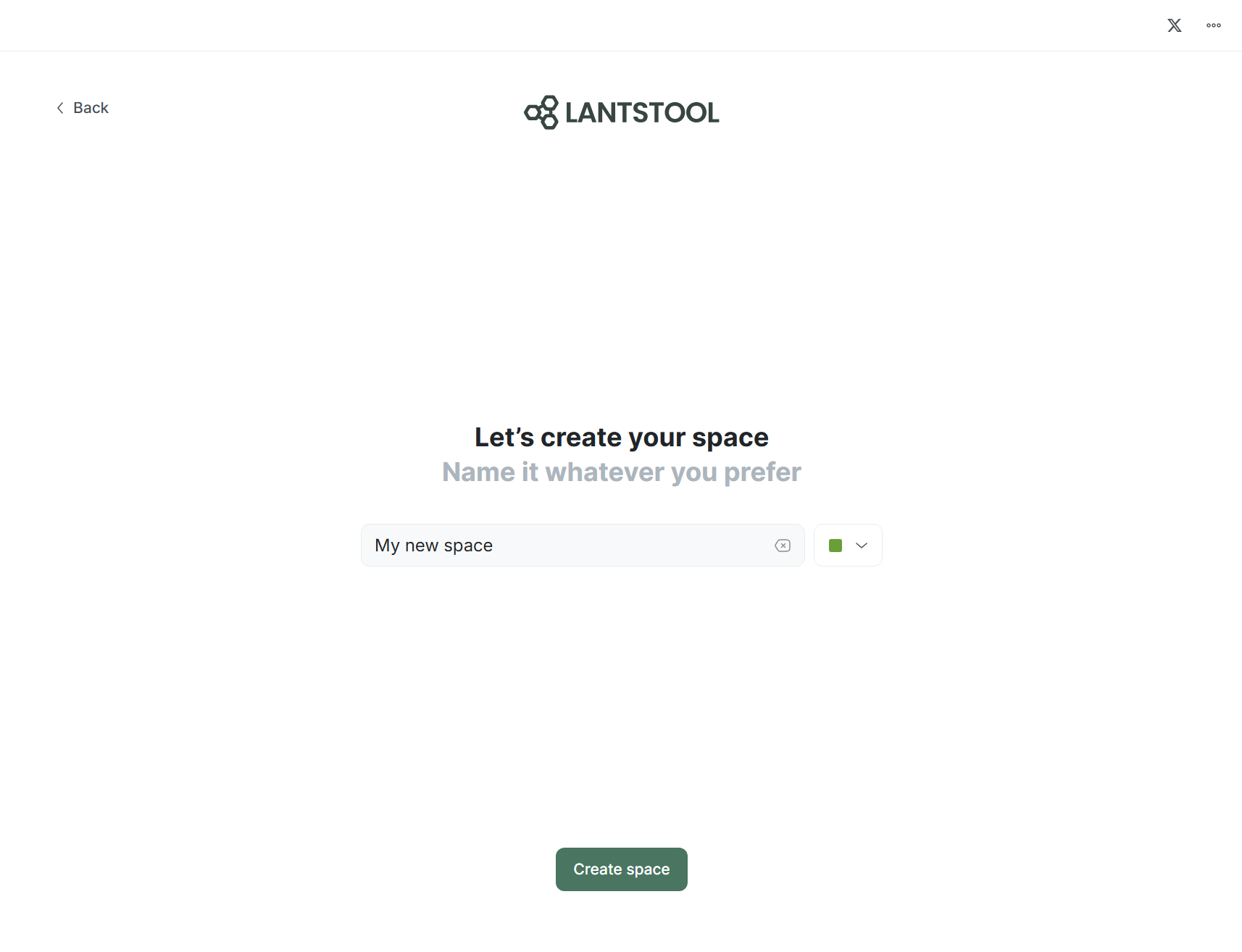
- On creation page, fill in name field and choose badge color (optional).
- Click
Create spacebutton. After creation, you will proceed to network settings.
Space list
On /spaces page (accessible via Manage spaces), you will see list of all existing spaces. Each element displays:
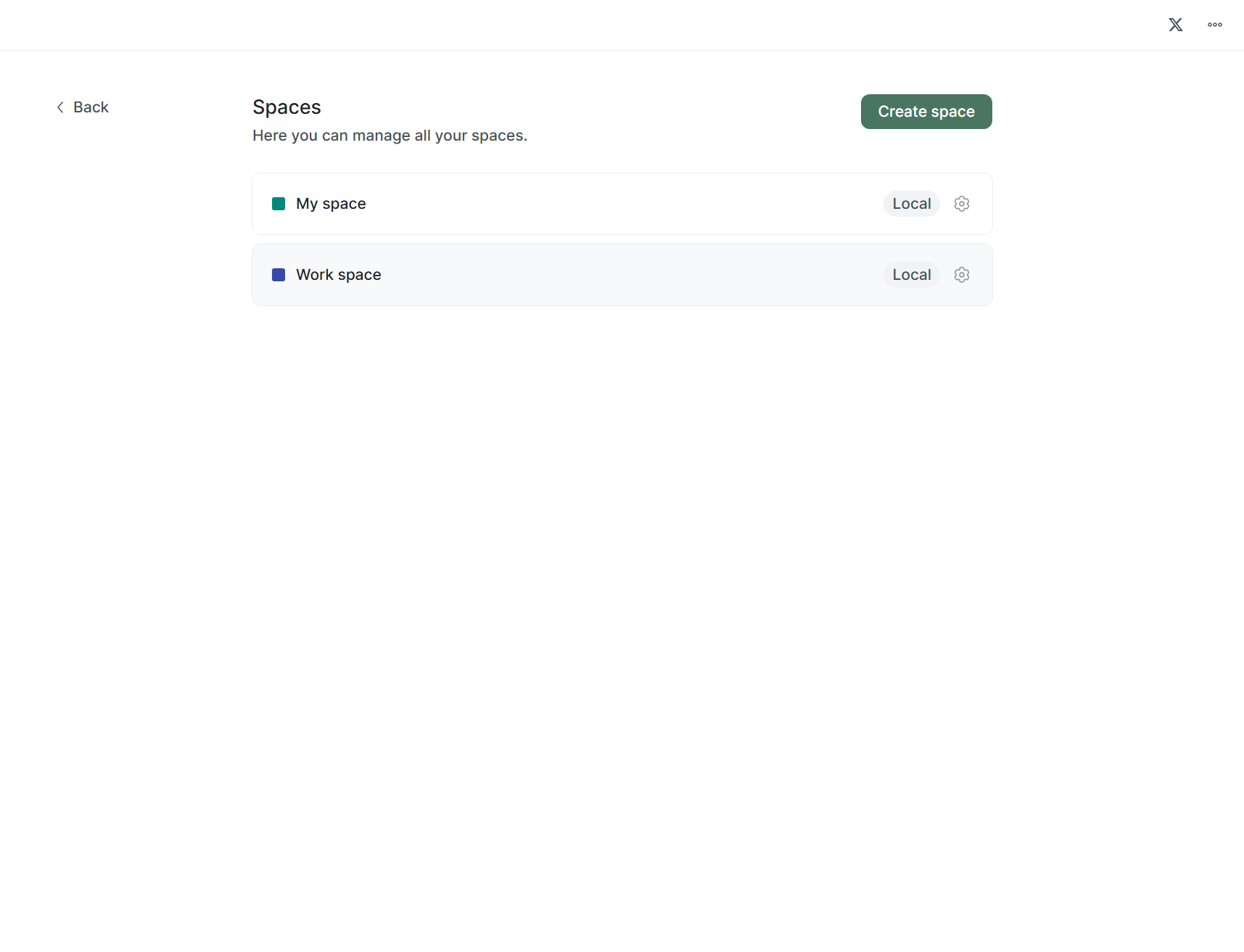
- Name: Space name.
- Badge color: Space color for easier identification.
- Local: Indicates that it is local space.
- Settings: Button for transition to settings.
Currently, Lantstool only supports local spaces. In future, we plan to add support for shared spaces to facilitate team development.
Settings
You can change parameters of your workspace or delete it by going to specific space settings.
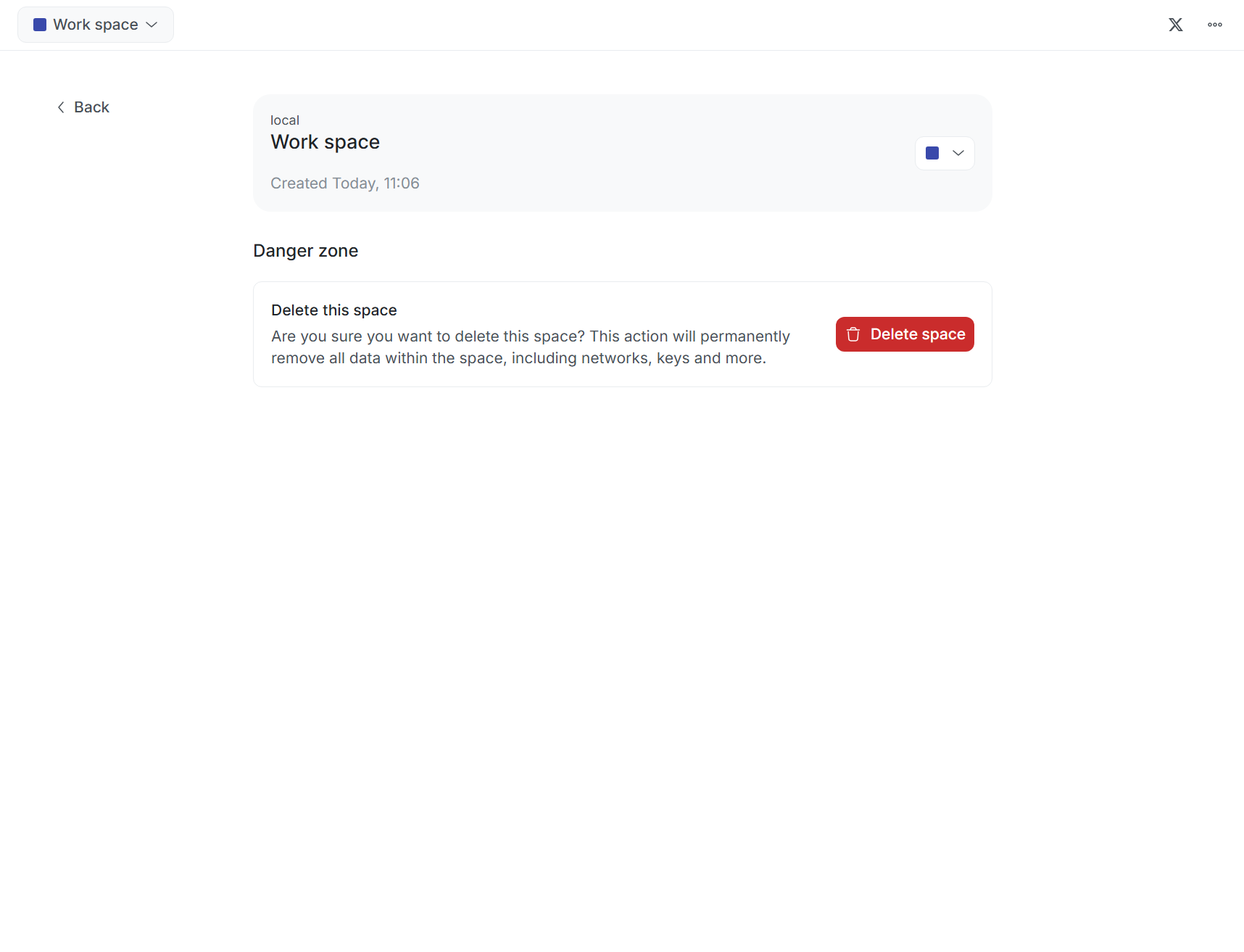
Control panel for current space is displayed at top of page, where you can:
- Change name: To change name, click on it and enter new one.
- Change badge color: Choose new color using dropdown list.
Deletion
To delete space, click Delete space button located in Danger Zone, and confirm deletion in modal window by entering current space name.
This action is irreversible. Along with space, all following will be deleted: all networks, keys, accounts, transactions, calls, and other data belonging to this space!
➡️ What’s next?
- Networks: Learn how to configure custom network.
- Transactions: How to create complex multi-action transactions.
- Calls: How to send RPC call.
- Keys: Details about secure key storage.